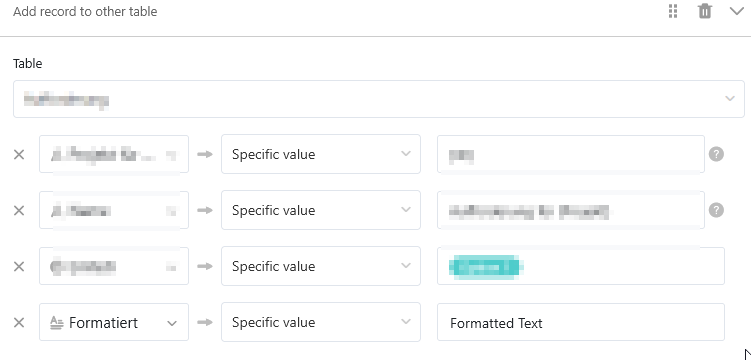
I suspect this to be an editor (the program - or maybe the persion?) problem. Because the formatted text can be entered, appears as shown (“Formatted Text“ is a H1 Heading), and the automation can be saved.
However, when I edit the automation the next time, the value is empty again. No value = no value is set when the automation triggern. All the other fields are set correctly.
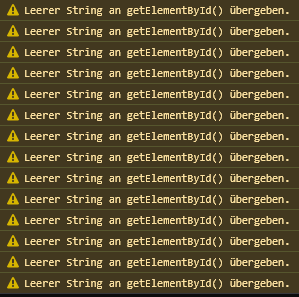
Error Messages:
After saving the automation, the value field is empty again.
Hi @abaer,
Sorry it seems that I missed your message ,
You’re right, I was able to reproduce the problem. The strange thing is that if you do the same with the action “Modify row”, the value remains and is actually updated. As it’s the exact same mechanism, I don’t understand why it’s working in one case but not in the other . I’ll report it.
A simple workaround, if needed, is to set the modification to Column value instead of Specific value, and having a Long-text column in your initial row containing the content you want to set in the new row.
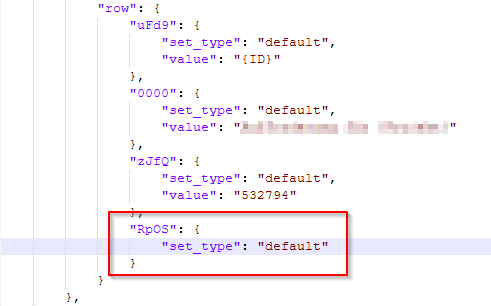
@bha thanks for looking into it! On closer inspection, I found out that it seems to be a frontend / interface problem. While the field is filled with the “Formatted Text“ string on-screen, what is actually sent to the API when the automation rule is saved is this:
Your workaround is good, but needs a very redundant extra column in the table to hold the value to write.
Another Workaround:
Target Table: Use normal Text field
Write automation rule and “specific value“ - works
Change column in target table to “formatted”: Still works, until you edit the rule
Very inconvenient for maintenance, line breaks - a hack, nothing else. However, serves more our original intention to use {fieldname} placeholders in order to string together a value from different colmuns.
Do it like thousands of other people who have used SeaTable to develop powerful processes and get their ideas and tasks done more efficiently.
 ,
, . I’ll report it.