We have several tables within a single SeaTable Base. Custom sharing permissions were created and assigned to specific users.
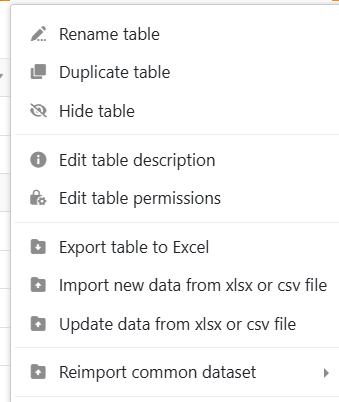
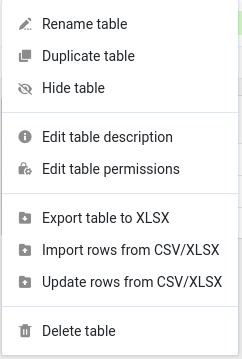
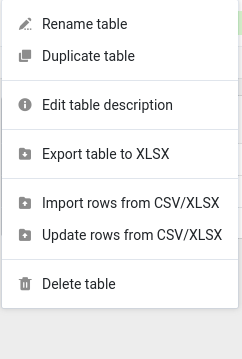
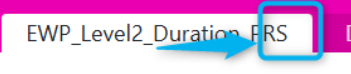
We observed that, although a user has Read-Write permission for a specific table, the user cannot see the triangle/drop-down options associated with that table.
Our objective is for the user to be able to:
Import new data in bulk
Update existing data through Excel import
However, the options required for these actions are not available to the user.
Could you please clarify whether additional permissions or settings are required to enable these functions?
The following options are currently not visible to the user:
User: rupesh (not owner of group or base)
admin : Admin0001
Group: Trial_Project (Created by Admin001)
Base: Trial_Base (Created by Admin001)
Table: Table1; Table2; EWP_Level2_Duration_PRS
Views: Under Table1 => View1_Table1 and View2_Tabe1; Under EWP_Level2_Duration_PRS : DefaultView
=> User not added as member of group by admin.
=> Admin created “Custiom Sharing Permission” as “Trial_Role”
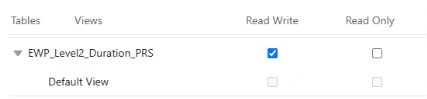
=> Ticked “Read Write” for DefaultView of EWP_Level2_Duration_PR
=> Ticked nothing for View1_Table1; View2_Tabe1 of Table1
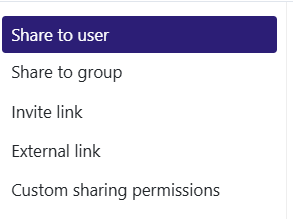
=> Then in “Share to User” selected user “rupesh” and permission selected as “Trial_Role”
Hi again,
OK now I understand the problem: it’s because of the custom share permission. Since user rupesh only has access to a view - and not the entire table - he cannot bulk import new data from a file.
This makes sense, since views can have filtering rules → you may import data that you actually won’t be able to see once filtered which will for sure lead to some issues. To deal with such case, you have two options:
give user rupesh an access to the whole table
create a universal app with a table page for EWP_Level2_Duration_PR table where you will be able to precisely define who can add/edit/delete records and which record to display using the preset data settings:
@bha No. The dropdown menu containing the functions “Import New Data/Rows” and “Update Data/Rows” is not displayed when a user is assigned only through a Custom Sharing Permission (i.e., the user is not a member of the group but has Read-Write access to the table).
Note: Adding the user as a member of the group overrides the Custom Sharing Permission settings. In such cases, the user inherits the group’s access rights and can access all tables available to the group, even if certain tables are configured as Read Only or are not selected in the Custom Sharing Permission. As a result, the user can perform actions such as modifying or even deleting data in those tables.
Do it like thousands of other people who have used SeaTable to develop powerful processes and get their ideas and tasks done more efficiently.