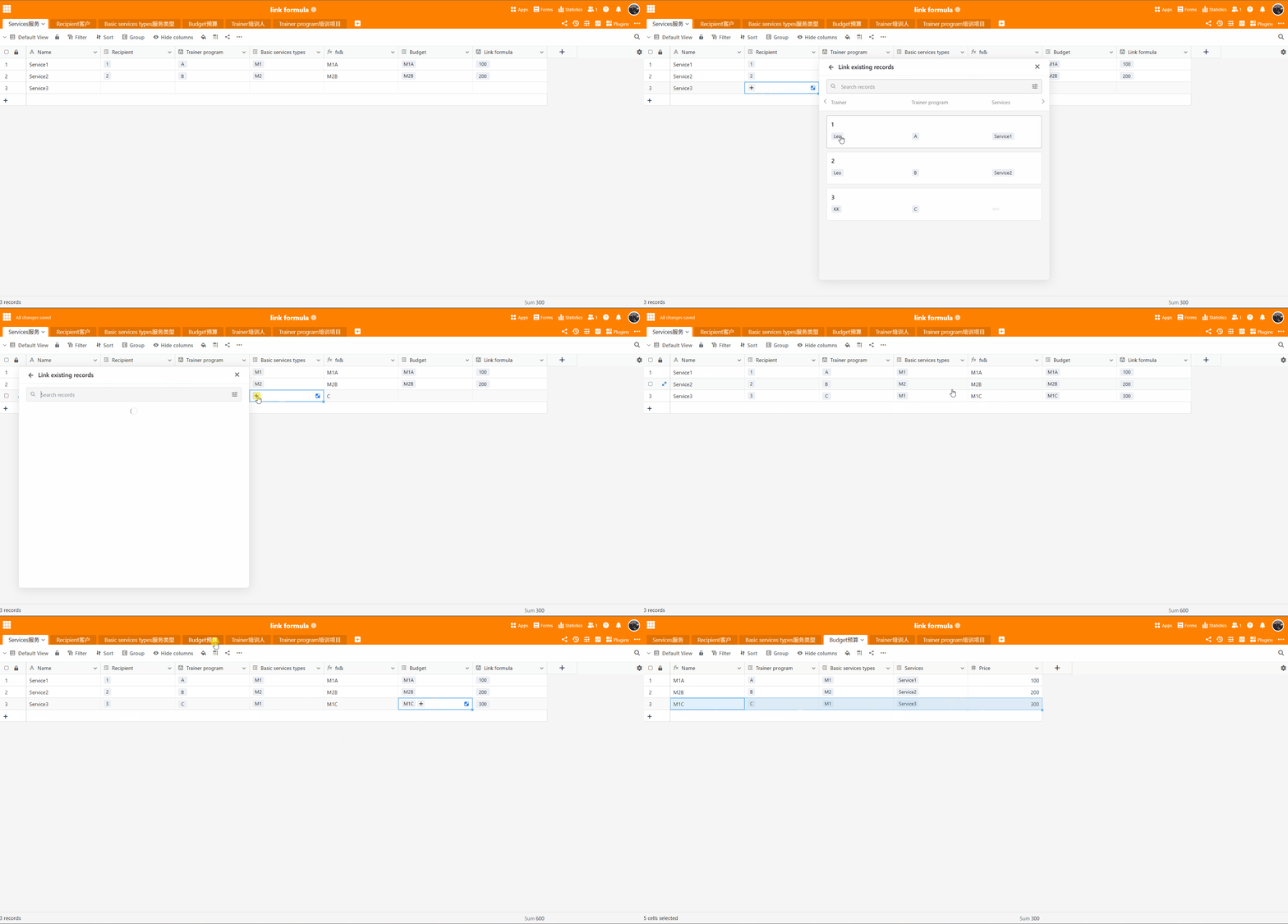
I have a table called “Services”, linking to basetypes of services performed for certain linked recipients. The recipients must be anonymous so each of them is known by their 1 trainer and 1 trainingprogram they are doing.
I have a different table called “Budgets”, where linked basetypes of services have different prices, depending on different linked training programs.
I.E. The base type of service ‘Meeting 1’ is differently priced for program ‘x’ as it is for program ‘y’.
I my table called “Services” I would like use a lookup formula to go through all the budgets of the linked type of service and find the budget that has the same program as the linked recipient.
I.E. a Service-row has a base type of service ‘Meeting 1’ for recipient ‘a’. I know recipient ‘a’ is doing training program x.
Now I iterate through all linked budgets of Meeting 1 to find the one correlating to program ‘x’. And from that budget I can now display various values such as the price.
So basically I would like use a Link-Formula to not findmax or findmin but instead lookup certain links of a link to find a specific row with a specific value corresponding to another columns value.
lookup(“type of service” → “budgets”, where budget.program = {recipient.program}, display:“price”)
I am trying to avoid linking the budget directly to the Service becaue then the linked program of that budget could differ from the linked program of the recipient, allowing room for errors. Also it would make it much easier to input a new service when I dont have to scroll through all the budgets but could simply input the base type of service itself.
I hope this makes any sense at all. Its very hard to describe.
Is there a way to do this without having to use scripts, that I need to trigger with automations? Is there a way to describe such a formula? I couldnt find a description of the lookup formula for the function column in this reference: SeaTable Formelreferenz: Funktionen, Operanden und Beispiele
What you are describing is a multi-level lookup with a dynamic condition. Currently, SeaTable’s Link Formula (Lookup/Rollup) columns only work across direct links and do not support “jumping” through multiple tables (e.g., Services → Base Type → Budgets) to find a specific match based on a field in a fourth table (Recipient’s Program) within a single formula.
However, you can achieve this without scripts using one of the following two no-code methods:
Option 1: Automation (Recommended for a seamless experience)
You can set up an automation that automatically links the correct Budget to your Service row. Once linked, you can use a simple Link Formula (Lookup) to show the price.
In your Services table, add a “Link to other records” column pointing to the Budgets table.
Go to Automation and create a new rule:
Trigger: When a record is added or a specific column (like ‘Base Type’ or ‘Recipient’) changes in the Services table.
Action: “Find a record” in the Budgets table.
Condition:
Base Type (in Budgets) equals Base Type (from the Service row).
Program (in Budgets) equals Recipient -> Program (from the Service row).
Action: “Update record” for the Service row, setting the “Link to Budgets” column to the ID of the record found in the previous step.
Add a Link Formula column in Services to pull the Price from the now-linked Budget.
Option 2: Link Filter (To prevent manual errors)
If you prefer to link manually but want to avoid errors and scrolling:
Add a link column from Services to Budgets.
Open the column settings and enable Link Filter.
Configure the filter so that it only shows budgets where:
Base Type is the same as the current row’s Base Type.
Program is the same as the current row’s Recipient -> Program.
Now, when you click to add a link, SeaTable will only show the 1 (or few) relevant budgets.
If you can add screenshots about your tables, that will help too.
Thank you for providing the detailed screenshots and clarification!
I completely understand why you ran into roadblocks with the previous suggestions:
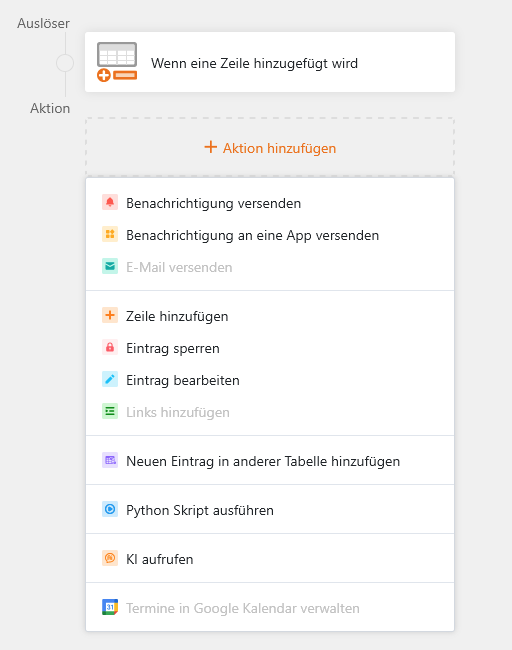
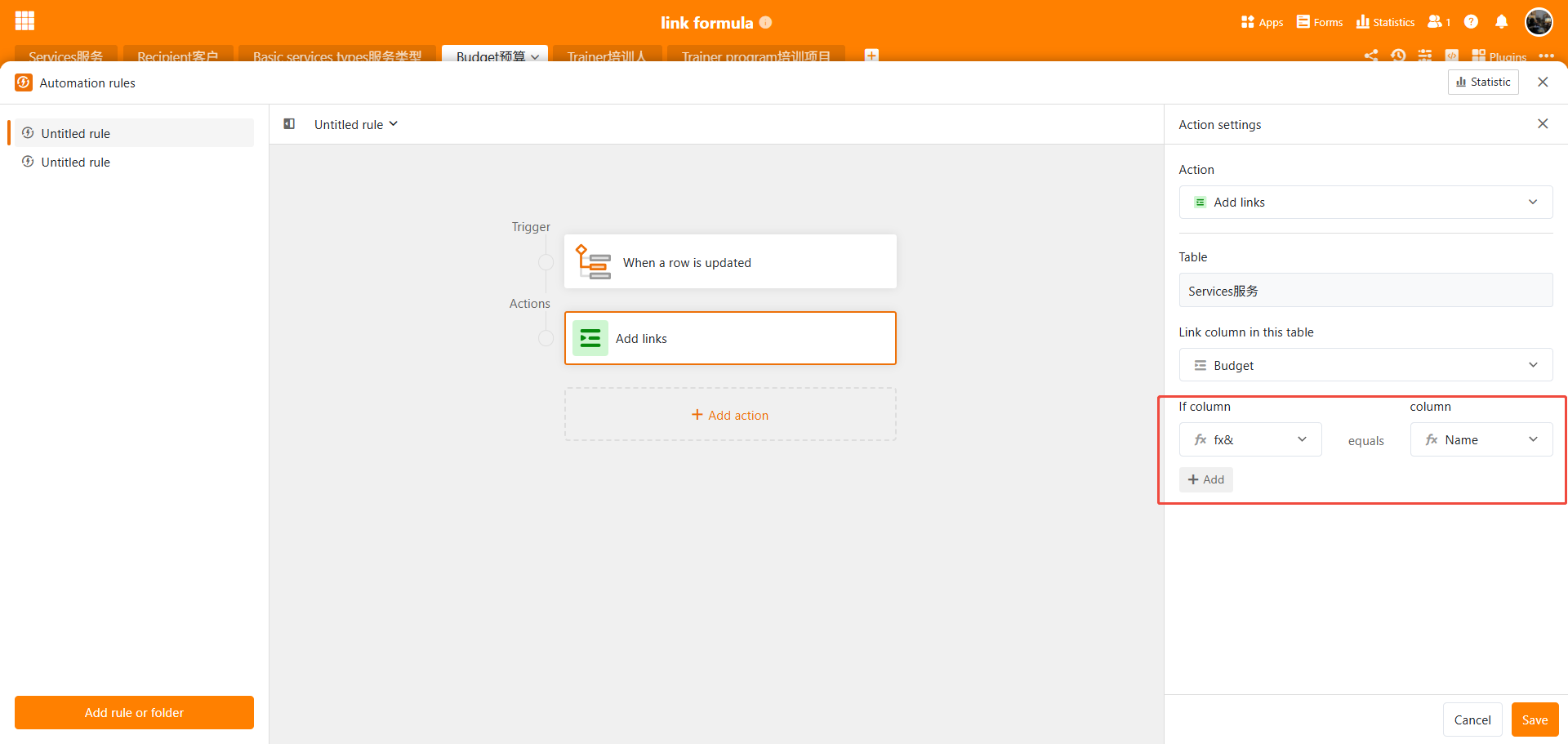
Option 1 (Automation): The “Add links” automation action is a feature available in specific plan tiers, and the action name previously mentioned was slightly inaccurate.
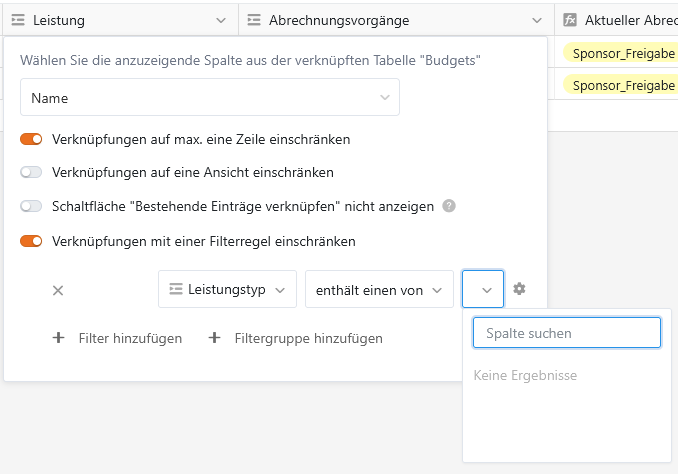
Option 2 (Dynamic Filter): SeaTable’s dynamic link filters currently do not support filtering based on multi-level formula concatenated fields directly across tables.
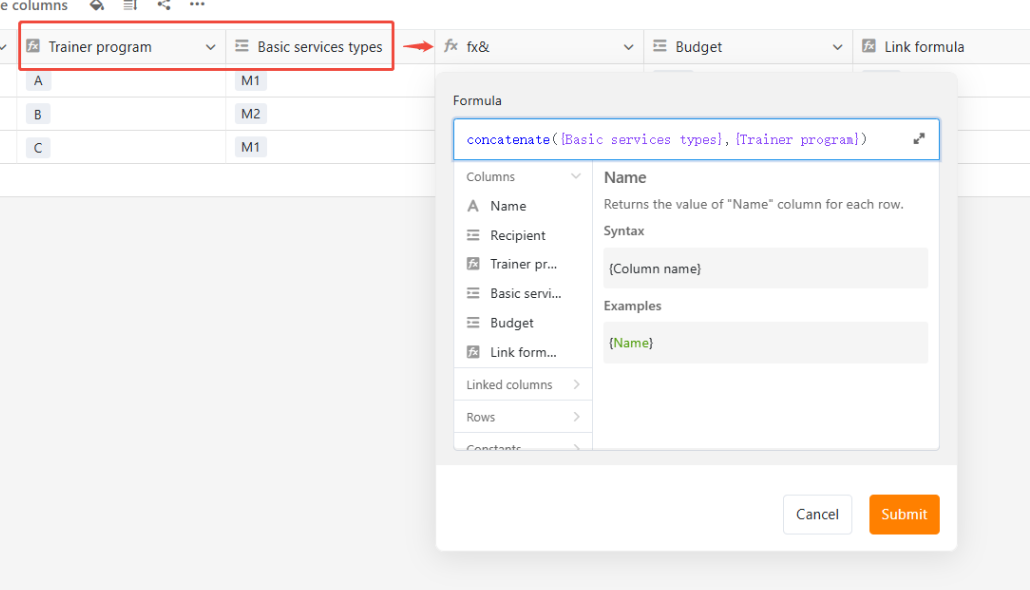
To achieve your goal seamlessly without writing any Python scripts, you can use a Composite Key (Formula Concatenation) method to establish the exact budget link automatically.
Step-by-Step Guide
Step 1: Create Composite Keys in Both Tables
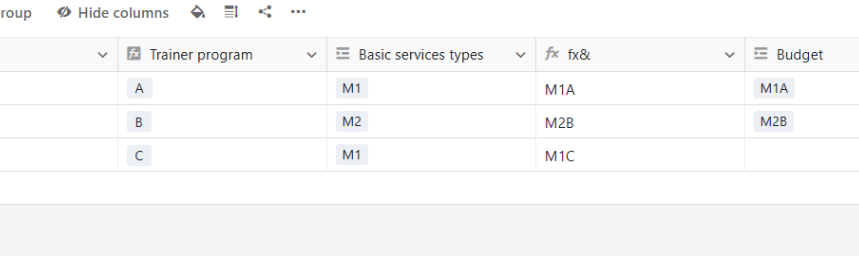
In the Budgets table: Ensure your Primary Key column (Name) is a concatenated string of Program + Base Service Type (e.g., ProgramA_Meeting1 or M1A).
In the Services table: Add a Formula column (e.g., named Lookup Key) that concatenates the Recipient’s Program + Base Service Type using the formula: CONCAT({Recipient->Program}, "_", {Base Type})(adjust column names accordingly).
Step 2: Set Up the Automation Rule
Create a new automation rule in your base:
Trigger: When a row is added or updated in the Services table (specifically when the Lookup Key is populated).
Action: Select “Add links” (if available in your subscription) or update the link using the Lookup Key to match the corresponding Name in the Budgets table.
Once the link column to Budgets is automatically linked by the automation rule, simply add a Link Formula → Lookup column in your Services table to fetch the Price from the linked Budget row.
Do it like thousands of other people who have used SeaTable to develop powerful processes and get their ideas and tasks done more efficiently.