Micro-Star International Co., Ltd. X470 GAMING PLUS (MS-7B79) , Version 2.0
American Megatrends International, LLC., Version A.M4
BIOS dated: Wed 17 Jul 2024 12:00 AM
128 GiB RAM
NVIDIA GeForce GTX 1060 6GB
Running on UnRaid with 154 TB.
AMD Ryzen 5 2600 Six-Core @ 3400 MHz
SeaTable Edition: Enterprise
SeaTable Version: latest at the time of this post
Describe the Problem/Error/Question:
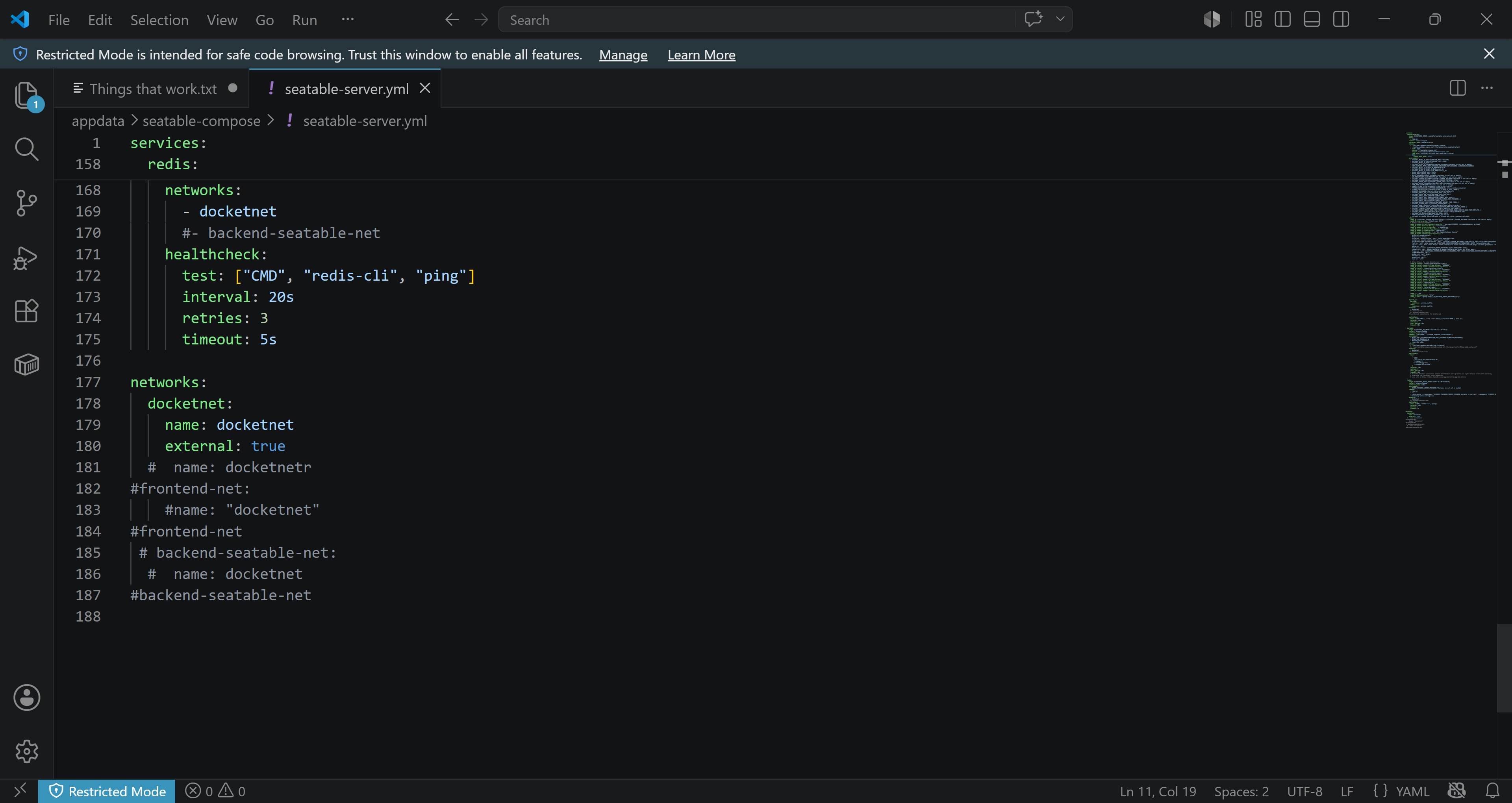
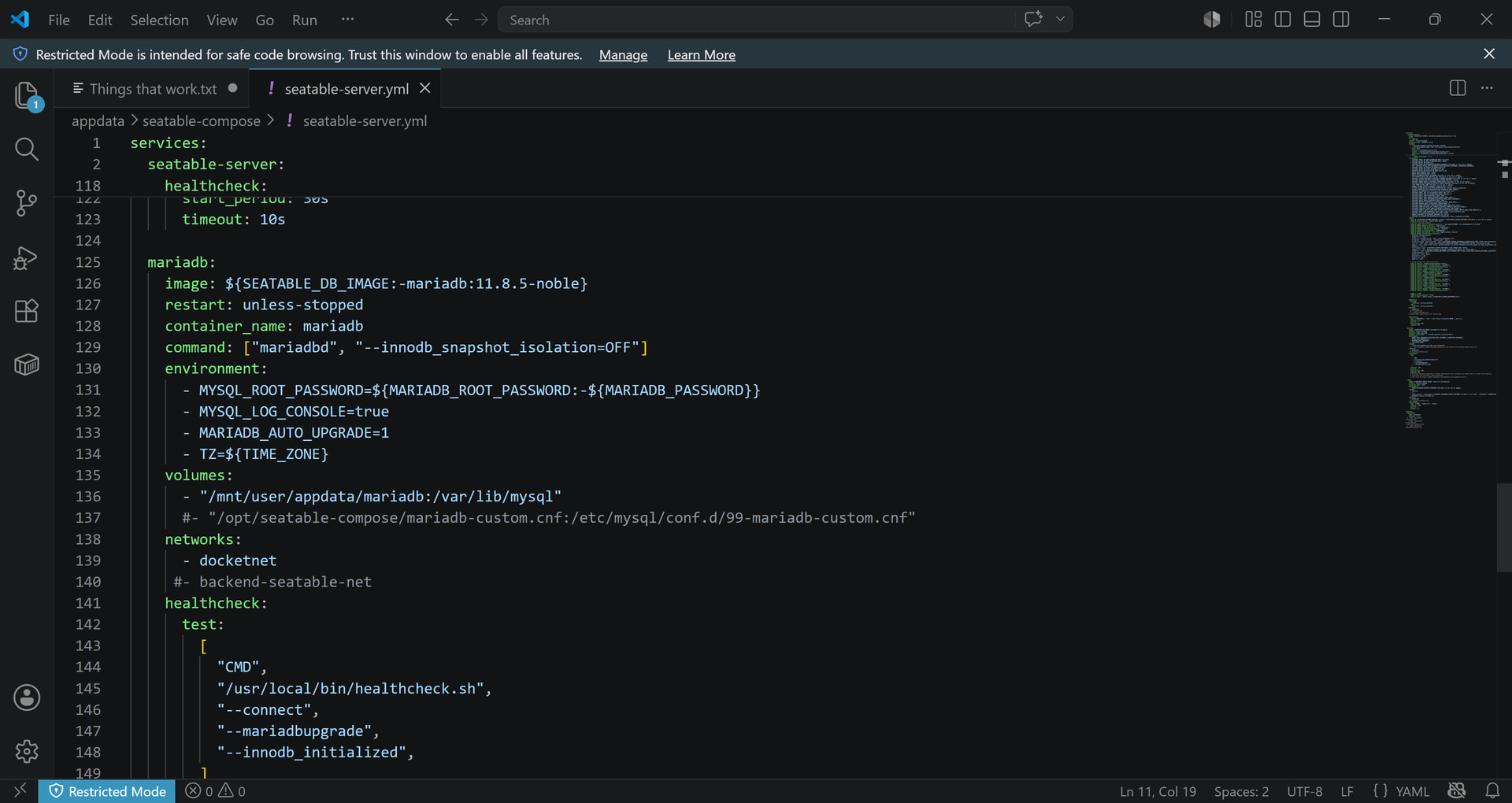
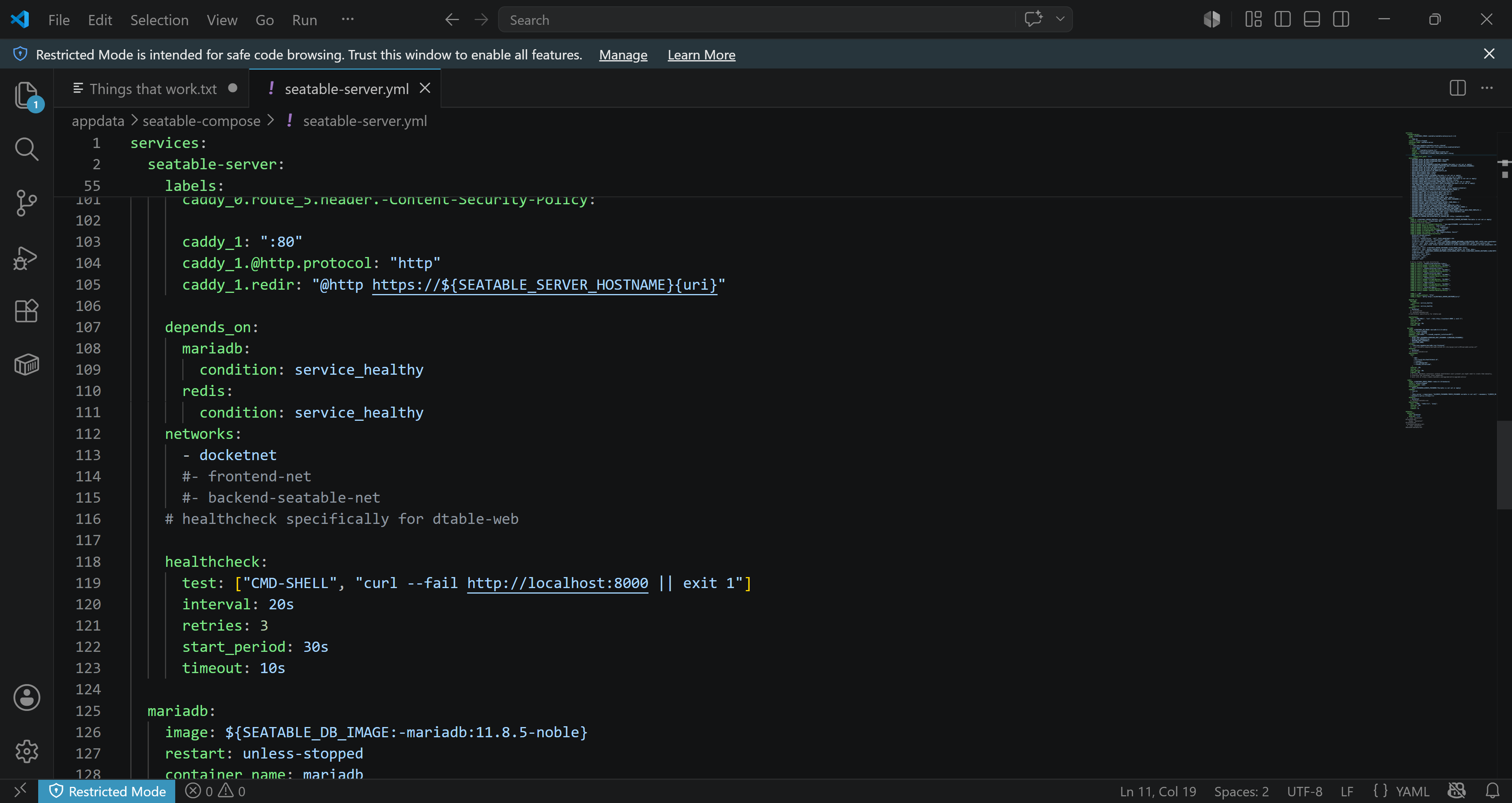
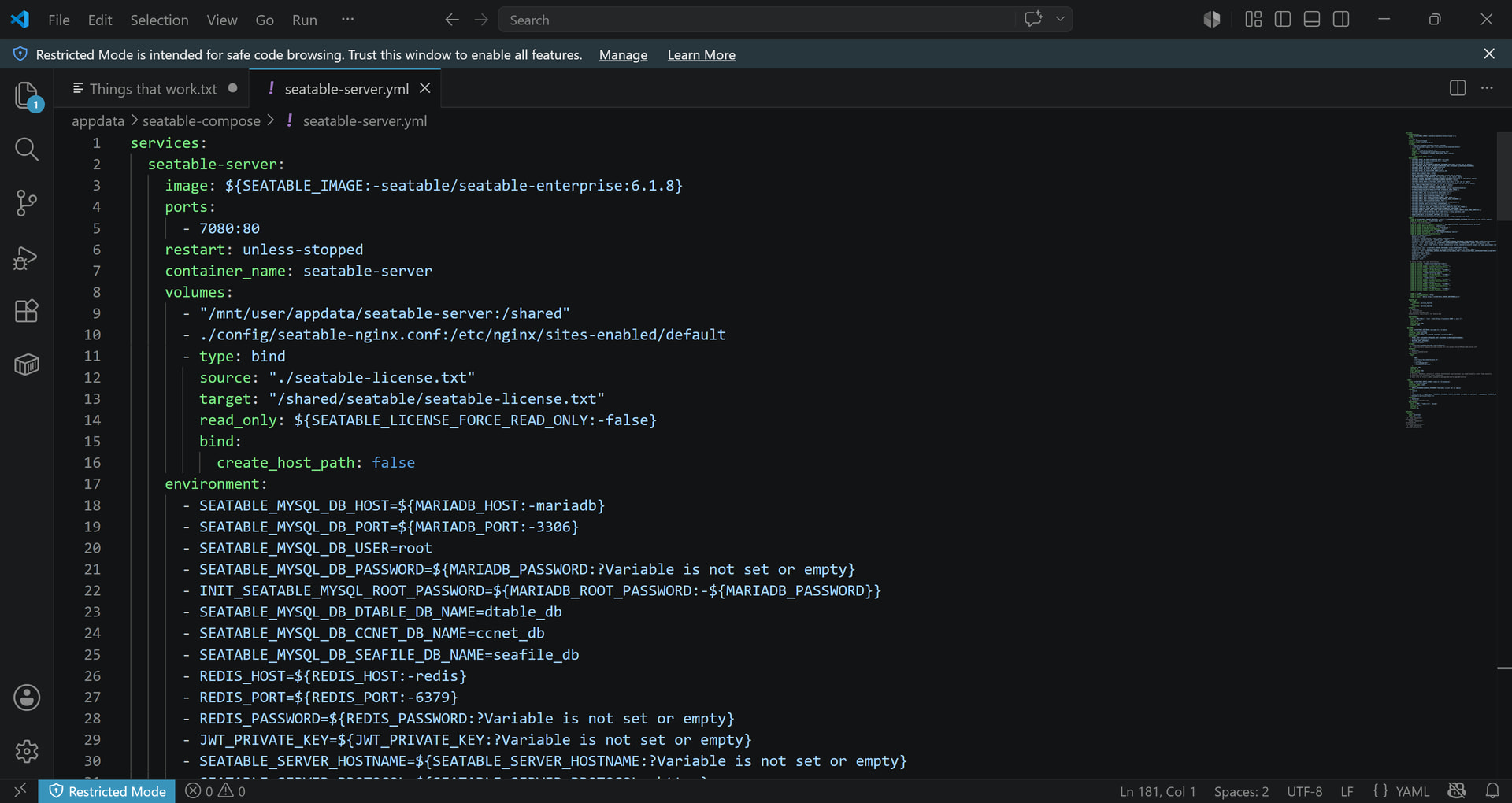
I’m having issues with the installation of Seatble as a whole. I can’t run the installation in /opt/ using my UnRaid setup. /opt/ is in RAM and will be deleted on every restart. The persistent storage location for UnRaid dockers is /mnt/user/appdata/. I’ve run into numerous problems with CSRF issues, MariaDB issues, and Network Error issues, and dtable_db errors. I’ve been able to go so far as to create my first table, but I’ve had to uninstall and reinstall multiple times.
I love what I’ve seen with Seatable. I’m using the cloud-based version and it’s the only thing has worked for me and my ADHD. I’ve tried MANY products and this is my favorite.
I promise I’m typing this with a cooperative tone. I hope the translation to German (if any is required!) conveys my tone! Thank you so much!
Being a fellow, although corporate self-hoster, I’m in no way the authority to give you full advice - that’s reserved for the Seatable staff. However, I just stumbled upon your question, and thought maybe I can point you in the right direction - with a question.
What do you mean with
I can’t run the installation in /opt/ using my UnRaid setup.
That does not sound like anything from the methods I used to install Seatable numerous times. What are you trying to do in /opt/?
The normal way to get Seatable running is to have a machine running Docker, then configure and deploy Seatable’s Docker stack using docker compose. I can’t remember any time I had to do anything in /opt/. If this is Unraid-specific, my comments may be of no help - I’m not familiar with Unraid.
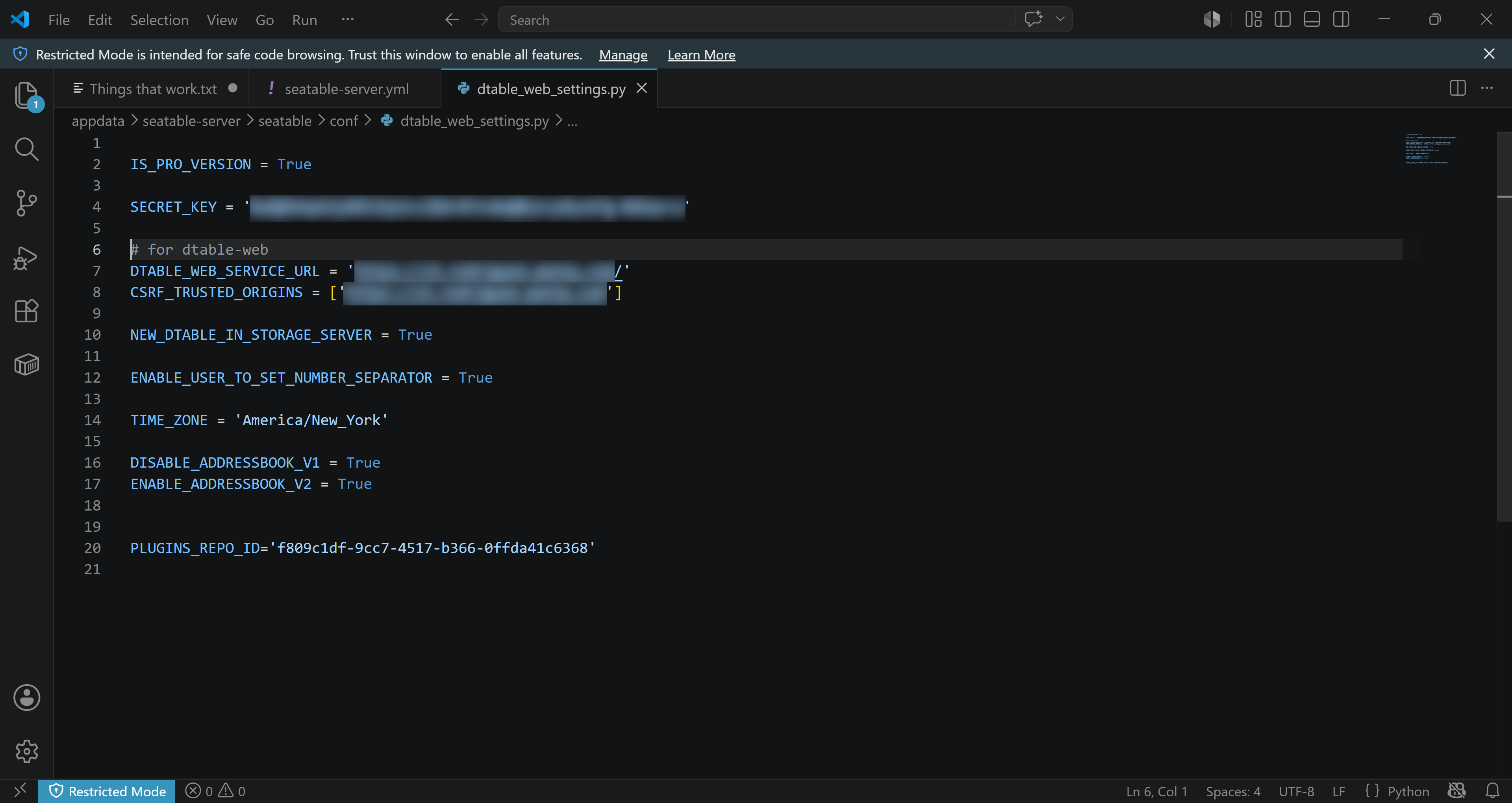
Hey abaer! The default installation path for the Seatable components (caddy, seatable-server, etc.) all point to /opt/caddy, /opt/seatable-server, /opt/mariadb, etc. I can change the location of these paths in each of the YAML files, but it seems to make Seatable “shakey”. When I change all the paths to /mnt/user/appdata/caddy, /mnt/user/appdata/seatable-server/, etc., the installation is able to survive a restart. Once that part works, I have to make changes to dtable_web_settings.py to get rid of the CSRF problems that I have. Then, I run into problems with creating my first table. I’ll get a Network Error issue with that. Then I’ll fix that by adding my port numbers to the IP addresses in dtable_web_settings.py. During these processes, I will sporadically have a MariaDB container issue that results in an unhealthy state for the Seatable Server container and keep Seatable from starting. I’ll then run into issues with table creation in MariaDB and things just start to fall apart from there.
I can positively confirm that you can change the /opt/ part before the colon to any path you like, provided it is writeable by Docker. In our installations, for example, we change it to a path that is being backed up daily, in our case /home/docker/container-data/seatable/mariadb:. All our persistent volumes reside in /home/docker/container-data/seatable/ on all our servers - just our internal convention.
I believe that all our your other problems are unrelated to this. I can’t quite point my finger to any specific issues, but this looks like a mixture of docker-internal networking and, most likely, TLS / HTTPS / Certificate problems. Therefore the most important question: Are you running Seatable over HTTPS / TLS, terminated by Caddy, under a valid Domain and with a valid Certificate (e.g. from Let’s encrypt)?
Check your browser console to see any hints towards mixed content etc.
I’m going to try a fresh install tomorrow and post some screenshots of the issues I’m running into. I wanted to make sure this topic didn’t close automatically.
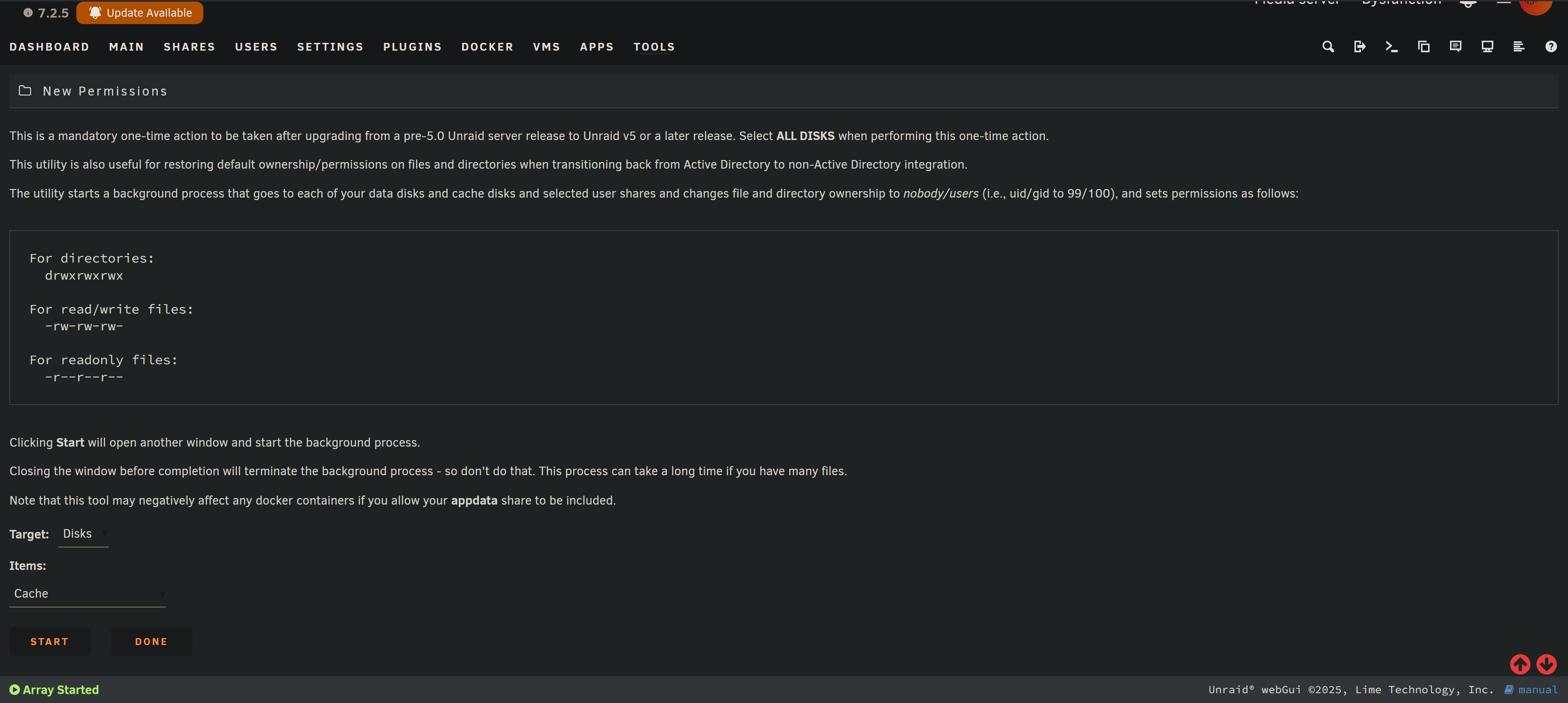
These are in no particular order. The biggest issue was caused by myself. I tried to use an external editor for changing the parameters in the files that needed to be edited. In order to do that using UnRaid, I needed to apply New Permissions to the files in order to edit the files outside of using a text editor on the host computer. By doing that, I ended up disrupting the permissions on the MariaDB install. I’m having a hard time putting this all into words in this post.
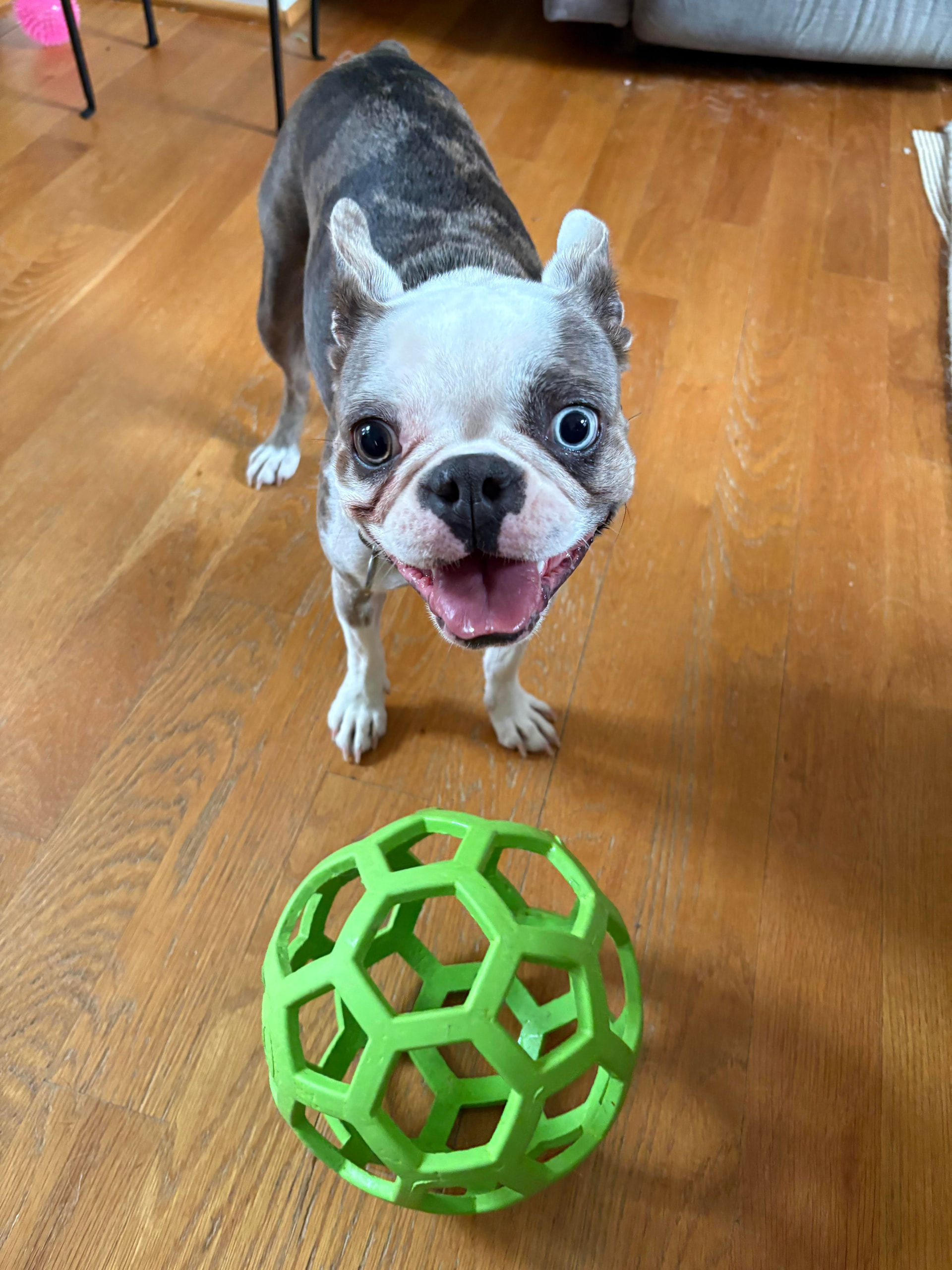
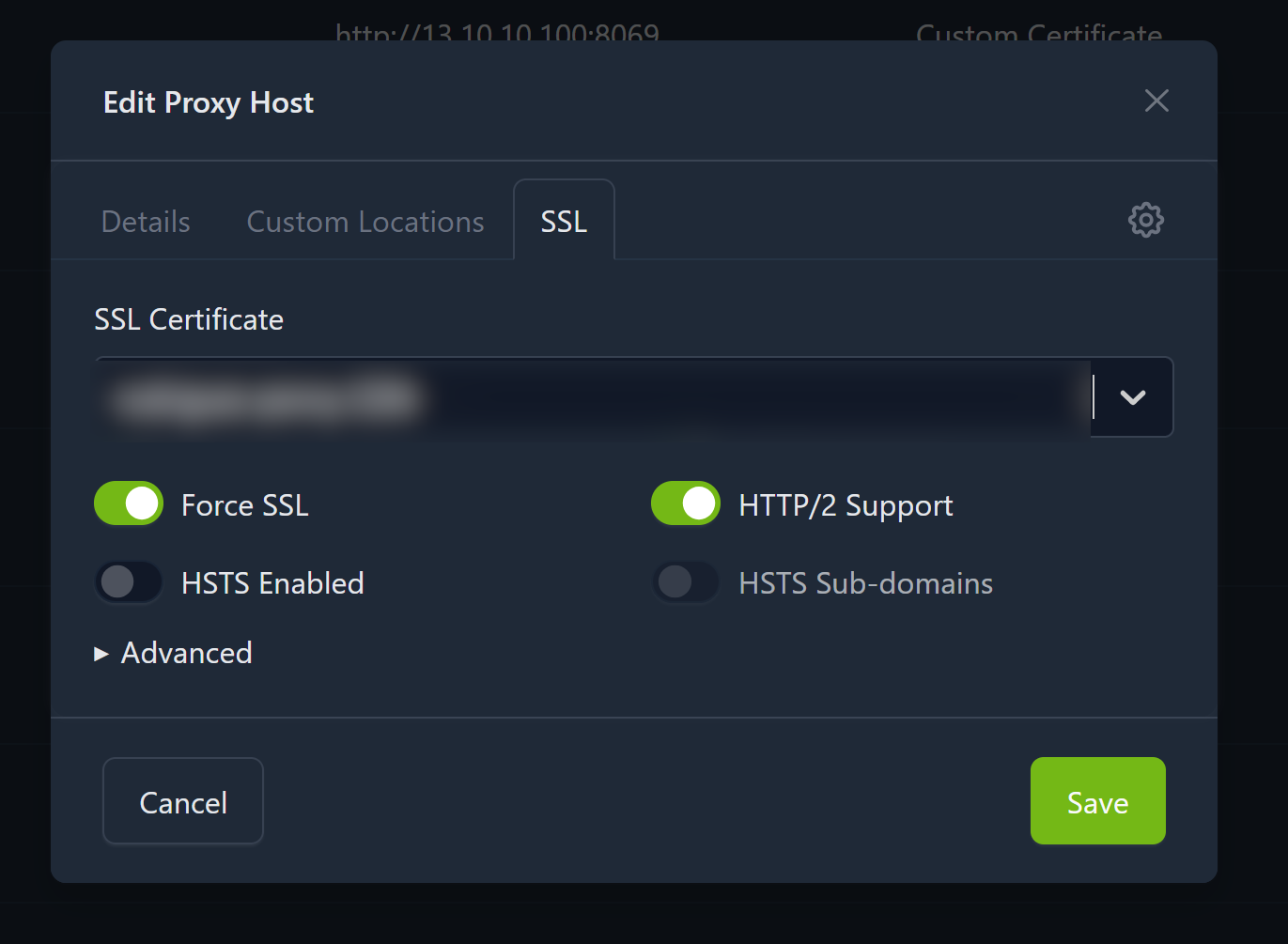
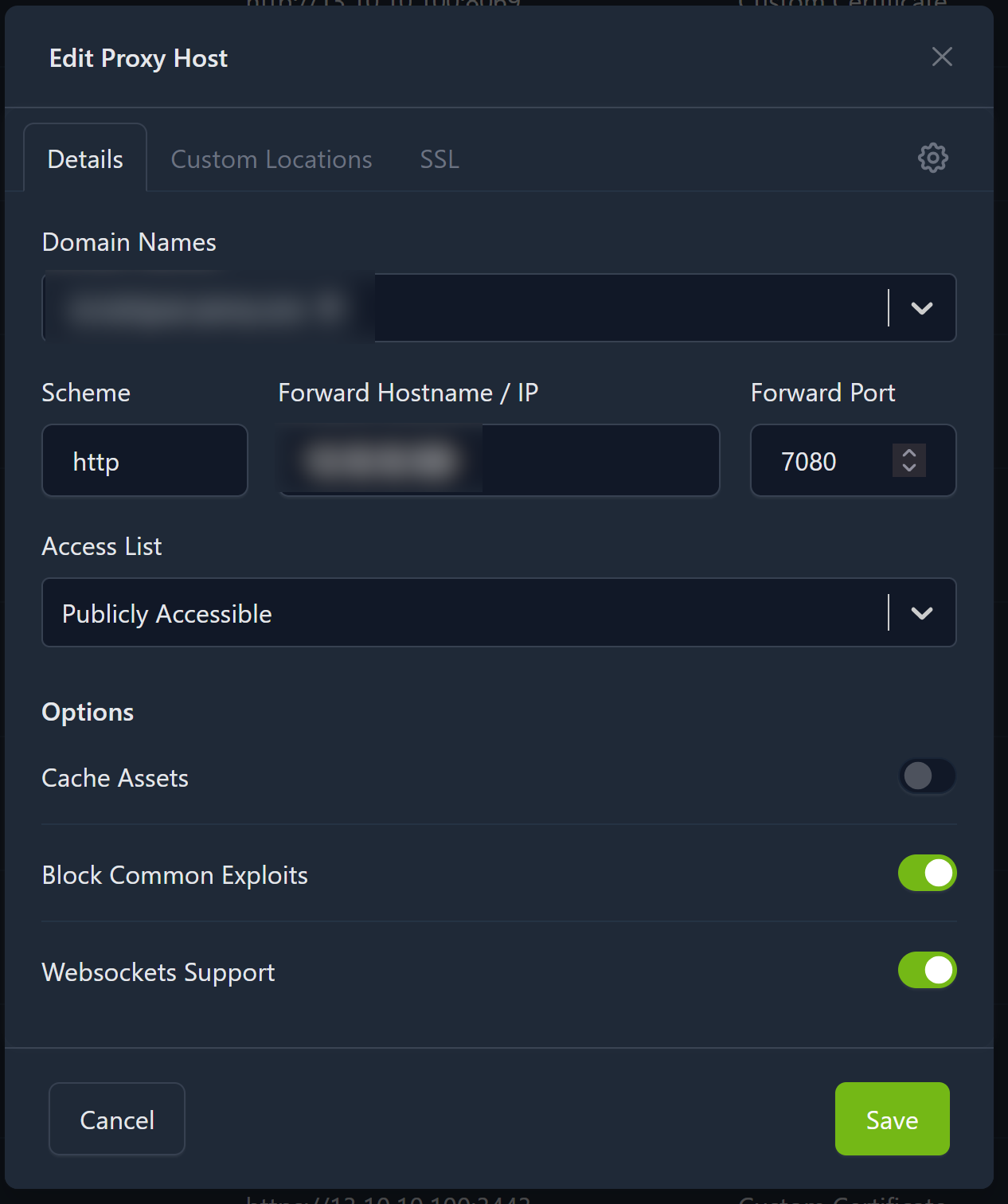
Long story short; follow the instructions given in the manual for installing SeaTable. I’m using Nginx Proxy Manager to host the SeaTable URL using Cloudflare. I used my IP address of the SeaTable docker instance initially to test out before exposing via Cloudflare. Please ask me questions for further clarification! I was hoping to have a better description of all of my install, but I’m getting pestered by one of my Boston Terriers to play.
As a follow-up to benefit others who might have similar troubles: In you final (running) install, did you replace Caddy by Nginx (using Nginx Manager), or did you stack everything on top of each other? (Nginx => Caddy => Dtable-Server)?
According to the SeaTable Server Installation Guide, the official recommendation when you already have a web server like Nginx, Apache, or Traefik is to disable the included Caddy proxy and configure your existing web server to forward requests directly to the SeaTable container.
Stacking proxies (Nginx => Caddy => SeaTable) is generally discouraged as it can lead to complex issues with HTTPS termination, certificate renewals, and CSRF token handling, as seen in similar community discussions (e.g., this thread regarding custom proxies).
For those using the new seatable-compose installation method, this usually involves:
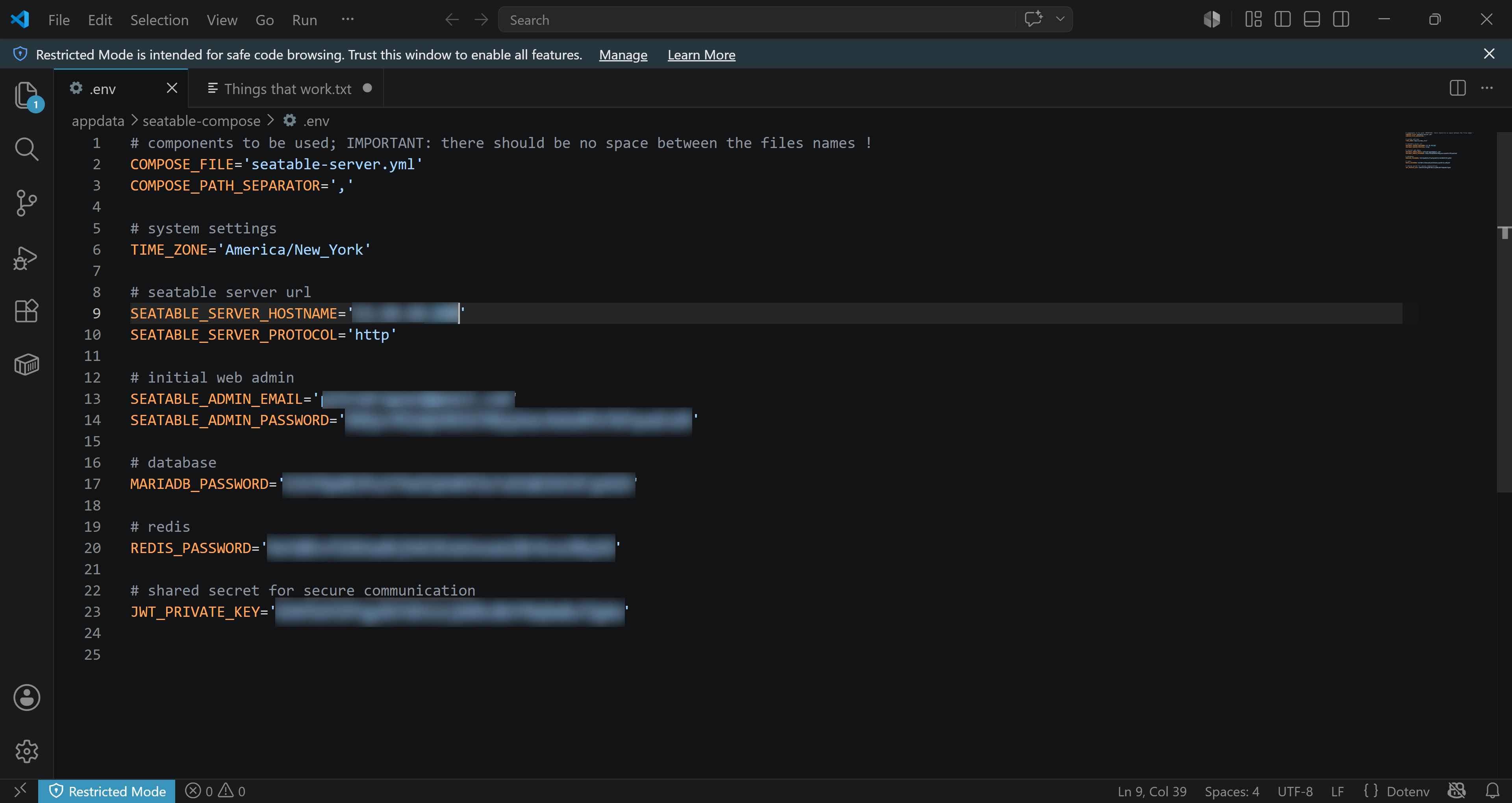
Removing caddy.yml from the COMPOSE_FILE list in your .env file.
Configuring your external Nginx (like Nginx Proxy Manager) to point to the SeaTable server’s internal port.
Do it like thousands of other people who have used SeaTable to develop powerful processes and get their ideas and tasks done more efficiently.